Mastering Your Schedule: The Ultimate Guide to Vis...
14 May, 2026

by admin
| 24 Nov' 2025
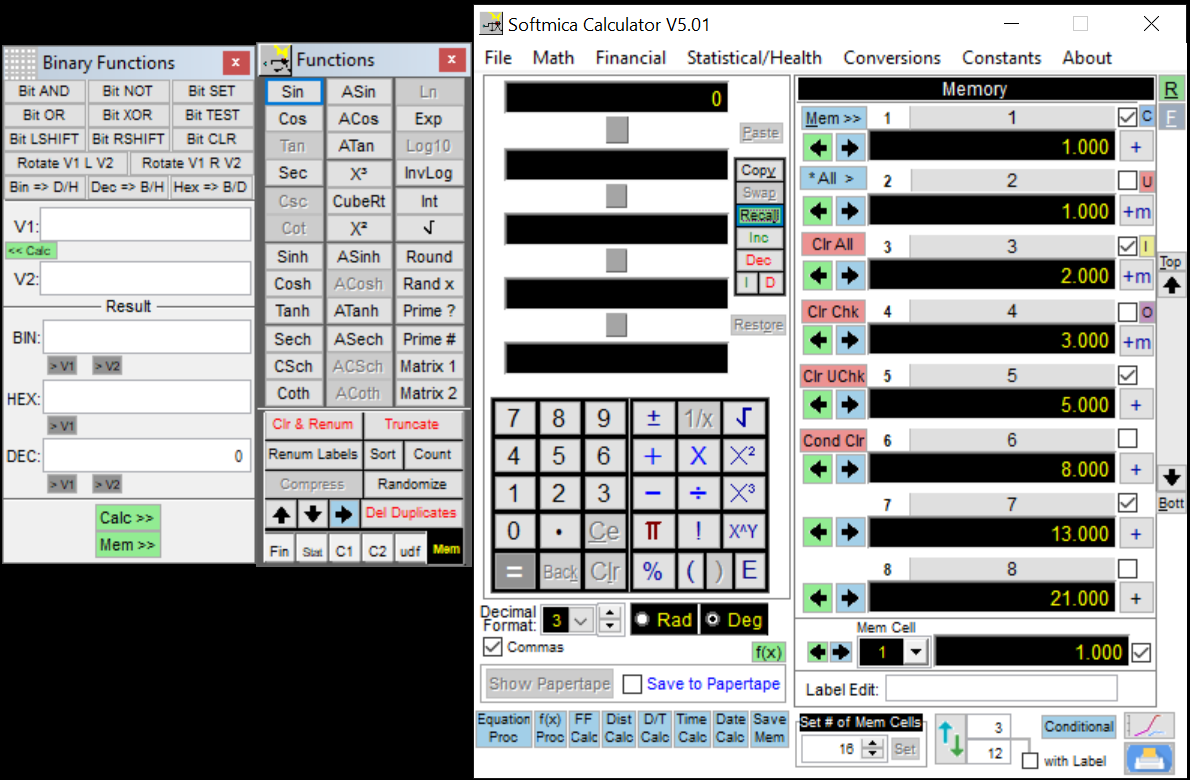
When working with complex calculations, bit-level operations play a major role in programming, hardware design, encryption, data processing, and performance-focused computing. On Gigacalc.net, the Binary Functions window acts as a powerful helper tool that gives you full control over bitwise operations and base conversions—while staying separate from the main calculator display. This mini environment is designed to help you operate directly on integers, switch between binary, decimal, and hexadecimal formats, and send results back to your primary calculator workspace with ease.
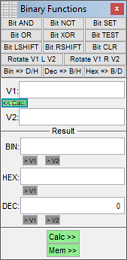
The Binary Functions window features a clean, straightforward structure built around two key input fields:
These are your main integer inputs.
• V1 works as the primary value for most operations.
• V2 works as the secondary operand for AND, OR, XOR, shifts, rotates, and bit-position commands such as SET, CLR, and TEST.
Your inputs are plain integers, generally typed in decimal, making it effortless to start any bitwise calculation.
After performing an operation, results are instantly displayed in three formats:
• BIN – binary output
• HEX – hexadecimal output
• DEC – decimal output
Next to BIN and DEC, you’ll find handy buttons such as > V1 and > V2, allowing you to copy results back into either input field. This makes iterative calculations quick and efficient.
You also get two powerful transfer buttons:
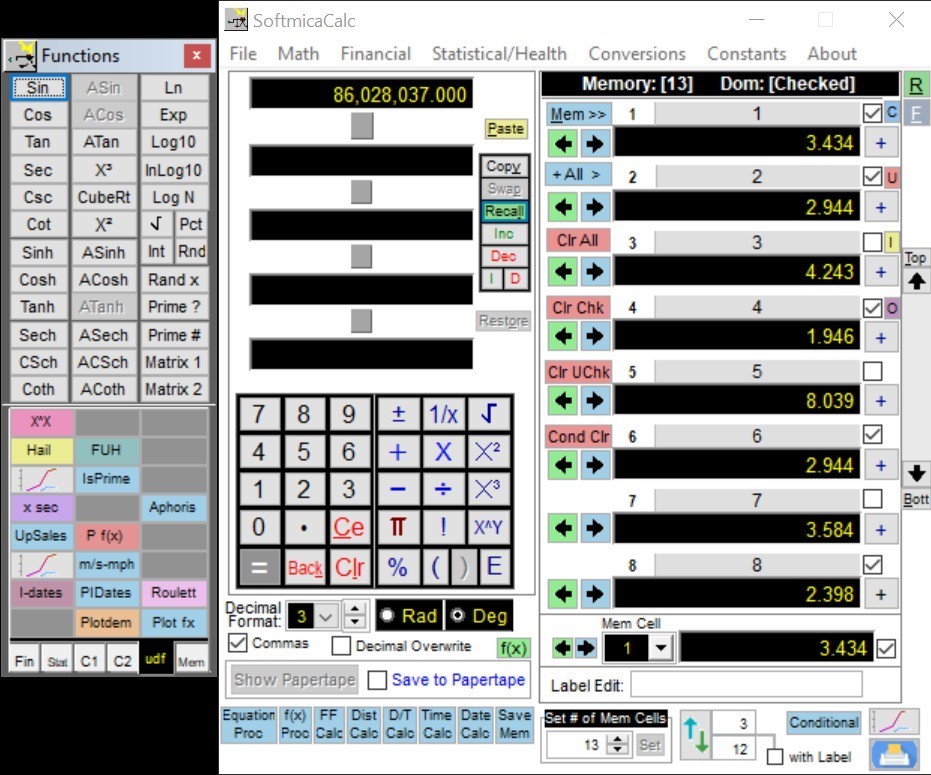
• Calc >> – Sends the current decimal result directly to the main calculator.
• Mem >> – Stores the current decimal result into the selected memory cell on the main calculator.
These features ensure seamless movement between bitwise operations and broader calculations.
Top area has the bitwise functions:
Computes V1 AND V2 bit by bit. Perfect for masking specific bits.
Computes V1 OR V2, combining bits where either value has a 1.
Outputs V1 XOR V2, useful for toggling bits or parity checks.
Performs bitwise negation of V1. V2 is ignored.
Shifts V1 left by V2 bits. Useful for multiplying by powers of two or formatting binary patterns.
Shifts V1 right by V2 bits, typically used for dividing by powers of two or moving bitfields.
Sets a particular bit of V1.
Typically: V2 = bit position; the result is V1 with that bit forced to 1.
Clears a bit in V1, forcing that specific position to 0
Checks whether a bit in V1 (given by V2) is on or off. The result is 0 or 1.
Circular left-rotate of V1 by V2 bits (bits shifted out on the left come back in on the right)
Circular right-rotate of V1 by V2 bits.
The Binary Operations calculator also includes three base-conversion buttons to convert input values between binary, decimal, and hex instantly:
• Bin ⇒ D/H – Treat the current value as binary and convert it to decimal & hex, filling the DEC and HEX fields.
• Dec ⇒ B/H – Treat the current value as decimal and convert it to binary & hex, filling BIN and HEX.
• Hex ⇒ B/D – Treat the current value as hex and convert it to binary & decimal, filling BIN and DEC.
(Exactly which input is used depends on which line or field is active; but the idea is: take the value you entered in one base and show it in the other two bases.)
• BIN: 0000 0101
• HEX: 0x5
• DEC: 5.
This Binary Operations calculator is a mini “bitwise calculator”: it lets you work with bits (AND/OR/XOR/NOT, shifts, rotates, set/clear/test bits) and quickly convert integer values between binary, hex, and decimal, then push the result back to the main calculator or memory.